Start sending invites for free - no card required - Click here

A Step-by-Step Guide to Sending Calendar Invites in Outlook
Scheduling meetings efficiently is a critical part of professional communication. Microsoft Outlook is widely used in workplaces for email and calendar management, making it a common choice for organizing meetings. Yet many users, especially new ones often feel unsure about the correct process for sending invitations.
BLOGS
12/31/20252 min read
Scheduling meetings efficiently is a critical part of professional communication. Microsoft Outlook is widely used in workplaces for email and calendar management, making it a common choice for organizing meetings. Yet many users, especially new ones often feel unsure about the correct process for sending invitations.
This guide explains how to send outlook calendar invite requests clearly and effectively, while also covering best practices to avoid common scheduling mistakes.
Why Calendar Invites Matter in Professional Communication
Calendar invites do more than reserve time on a schedule. They act as formal meeting confirmations, reduce misunderstandings, and help participants prepare in advance. When used correctly, they eliminate the need for repeated follow-ups and ensure everyone is aligned on timing and purpose.
Outlook calendar automatically sync across devices, making them especially useful for professionals managing busy schedules.
Getting Started with Outlook Calendar
Before sending any invitations, it’s important to understand the basic structure of Outlook’s calendar. The calendar feature allows users to create events, invite attendees, add meeting details, and track responses all from one interface.
Once an event is created, Outlook sends invitations via email and records responses such as accepted, declined, or tentative.
How to Create and Send a Calendar Invite in Outlook
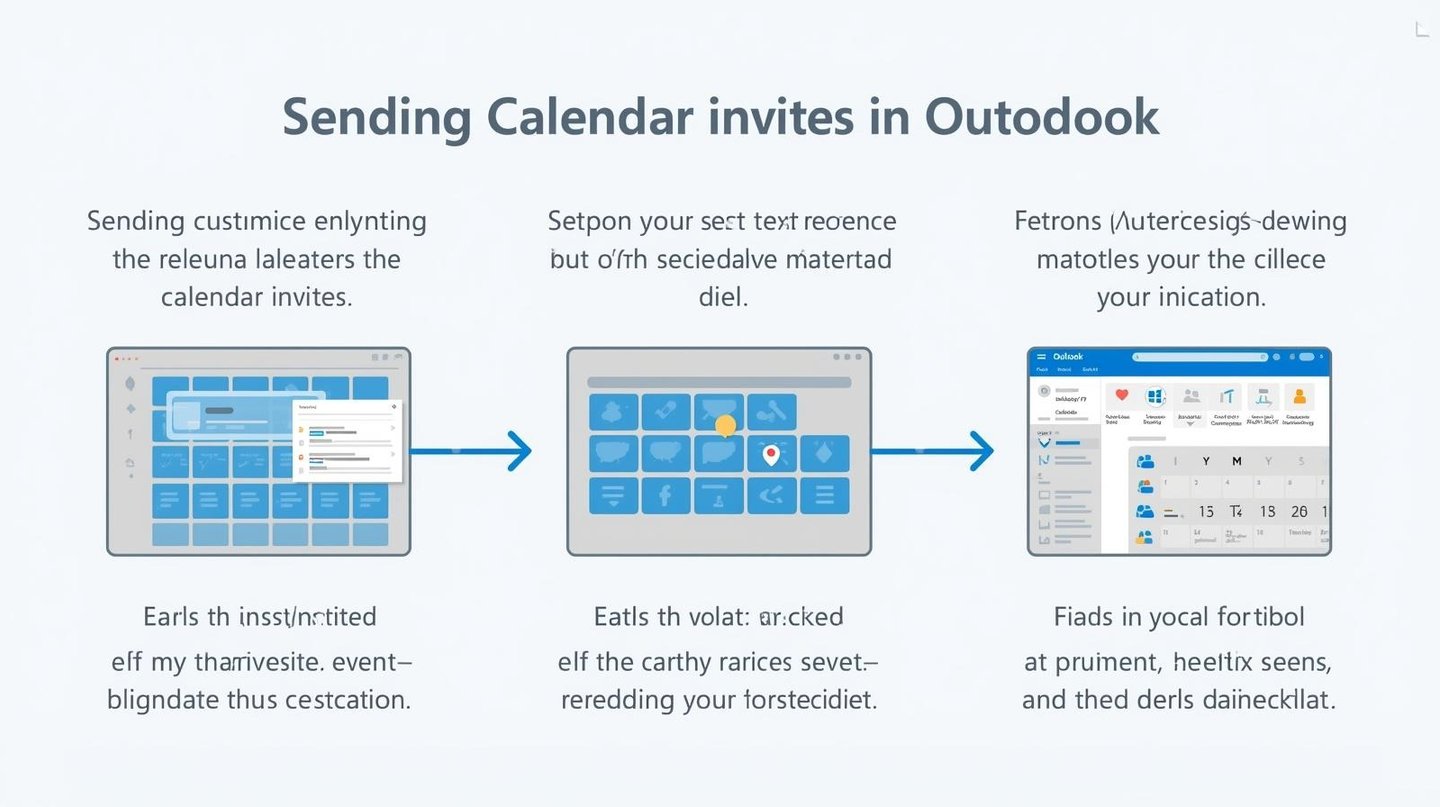
If you’re wondering how to send a calendar invite in outlook, the process is straightforward:
Open Outlook and navigate to the Calendar section
Select “New Event” or “New Meeting”
Add a meeting title, date, start time, and end time
Enter the email addresses of participants
Include relevant details in the description
Click “Send” to deliver the invite
Once sent, recipients receive an email invitation that they can accept or decline.
Writing Clear and Effective Invitations
The clarity of your invite impacts how well the meeting runs. A good invitation should include:
A descriptive subject line
A brief explanation of the meeting purpose
Any preparation requirements
Location or virtual meeting details
This ensures participants understand why the meeting exists and what is expected of them.
How Outlook Manages Responses
After sending an invite, Outlook tracks attendee responses automatically. Organizers can view who has accepted, declined, or not responded yet. This visibility helps with planning and follow-ups.
If changes are required such as rescheduling or updating details Outlook allows organizers to send updates that sync automatically with attendees’ calendars.
Common Mistakes to Avoid
Even experienced users make scheduling mistakes. Some of the most common include:
Forgetting to add all required attendees
Sending invites without clear agendas
Scheduling overlapping meetings
Ignoring time zone differences
Taking a few moments to review invitations before sending can prevent confusion and missed meetings.
Managing Recurring Meetings
Recurring meetings are useful for weekly or monthly check-ins. Outlook allows organizers to set repeating events while maintaining flexibility to modify individual sessions when needed.
Clear naming conventions help participants distinguish recurring meetings from one-off events.
Updating or Canceling Calendar Invites
If plans change, Outlook makes it easy to update or cancel meetings. Sending timely updates shows professionalism and respect for attendees’ time.
Canceled events are automatically removed from participants’ calendars, reducing clutter and confusion.
Conclusion
Understanding how to send an outlook invite properly can significantly improve scheduling efficiency and communication clarity. Outlook’s calendar tools are designed to simplify coordination and keep teams aligned.
With clear details, thoughtful timing, and proper follow-up, calendar invites can transform meetings from interruptions into productive conversations.
BulkCalendar.in
Send Bulk & Mass Calendar Invites Instantly
Contact us
Engagement
sales@letscalendar.com
+44 (0) 203 916 5117
© 2025. All rights reserved.
Help?